
Field manual · 06/17
Items, Folders & Tags
The Items tab is the list behind the map. It is where you find a pin you saved last month, restyle twenty at once, file them into folders, tag them across folders and move them to another layer.
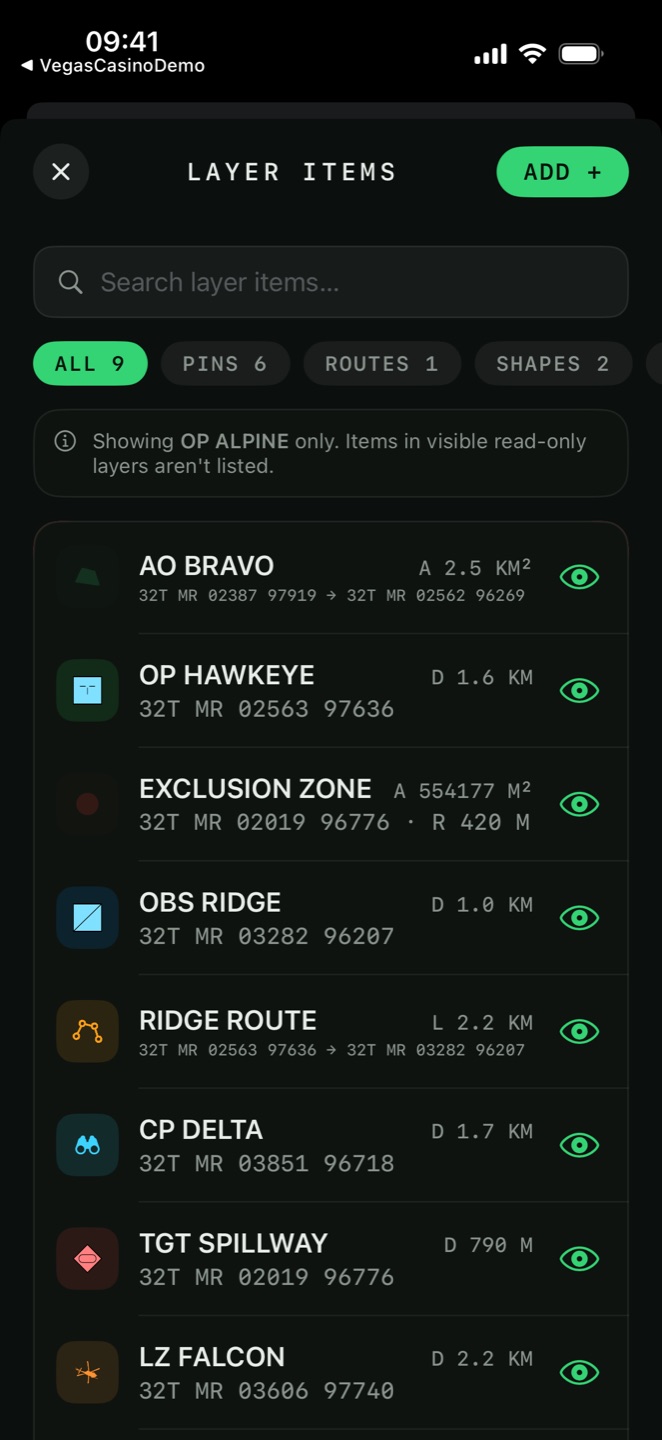
the items screen
Open the Items tab to get Layer Items — every saved item in the active layer, newest first by default. The header names the layer you are looking at and reminds you that items in visible read-only layers aren't listed: the list follows the active layer, not what is drawn on the map.

Search
Search layer items… matches names and descriptions as you type. With nothing found the list reads No items match your search.; an empty layer reads No items. Tap ADD to add.

Type filter
Four chips with live counts: All, Pins, Routes, Shapes. Pins covers labels, photos and elevation points; Routes covers polylines and freehand drawings; Shapes covers polygons, circles and rectangles.

Sort
The sort chip offers Newest First, Name, Distance from Me and Icon. Distance sorts against your current fix, which turns the list into a nearest-first target list. Icon groups everything with the same symbol together.
Add from a form
ADD opens the same item types as the map's Add tab, but as a form: type a coordinate instead of positioning the crosshair. This is the fast path when you are copying grids off a paper overlay or a set of orders.

Show All / Hide All
Hides items from the map without deleting them. Individual rows carry their own eye. A hidden geofence does not alert.
folders
A folder groups items inside one layer. Folders appear as collapsible headers at the top of the list, above the unfiled items, with an amber rail down the left edge so a filed block reads as one thing.
Assign a folder from the Folder row in any item's editor, or from the list:
| Action | Where | What it does |
|---|---|---|
| New Folder… | Row menu, selection bar | Creates a folder and files the item or selection into it. |
| Move to Folder… | Row menu, selection bar | Moves into an existing folder. The sheet shows how many items will move. |
| Remove from Folder | Row menu | Returns the item to the unfiled block. |
| Rename Folder… | Folder header menu | Renames it. Renaming to the name of another folder merges the two. |
| Dissolve Folder | Folder header menu | Removes the folder, keeps every item. |
| Delete Folder & Items | Folder header menu | Deletes both, after a confirmation naming the item count. Cannot be undone. |
| Select Items | Folder header menu | Starts a selection with that folder's items ticked. |
| Eye | Folder header | Shows or hides the whole folder on the map at once. |
Route Alpha/Checkpoints
creates Checkpoints inside Route Alpha. Collapsing a parent hides everything below it.<Folder>, and an imported file's folder structure is preserved. Nested
<Document> levels collapse into one dash-joined name.tags
A folder puts an item in one place. A tag describes it, and an item can carry as many tags as
you like — so water, checked and day2 can cut across the
folders you built for geography.
Adding tags
Every item editor has a Tags row under Folder. Type a tag and press comma or Return to commit it as a chip. Existing tags in the layer are offered as suggestions, so you do not fork Water and water by accident.
Filtering by tag
A chip bar with counts sits at the top of Layer Items. Tapping chips filters the list, and multiple chips are combined with AND — water plus checked shows only items carrying both. With no match the list reads No items match the selected tags.

Tagging in bulk
Tags… in a row menu or the selection bar opens a sheet listing the layer's tags with an Add and New Tag…. Applying to a selection adds a tag without touching the tags those items already carry.
Water and water are the same tag.<ExtendedData> so a tagged layer opens with its tags intact
elsewhere and re-imports here unchanged.<ExtendedData> and GeoJSON properties the same way.selecting and batch editing
- Tap Select Items. The header becomes Select Items and rows gain tick boxes.
- Tick rows, or use SELECT ALL — which respects the active search, type filter and tag filter, so you can select exactly one category.
- The bar shows n SELECTED and the actions that apply.
| Selection action | Effect |
|---|---|
| Edit | Batch pin editor — set colour and symbol on every selected pin at once. |
| MOVE | Move to Folder… and Move to Layer… |
| TAG | Add a tag to the whole selection. |
| Merge Paths | Joins the selected polylines into a single route, end to end. |
| Delete | Deletes everything selected. |
| CLEAR | Clears the selection without leaving selection mode. |
deleting, and what goes with it
Swipe a row to delete it, or use the selection bar for several at once.
n pin(s) sit on this shape's
points. Delete them too?
— with Delete Shape & Pins and Keep Pins.
Choosing Keep Pins leaves the waypoints behind when the line goes.folders and tags on import
Settings → Import Other Formats To Layer starts with an Import Into Folder field. Name a folder there and everything you import next lands inside it, which keeps a hundred waypoints from a downloaded GPX out of your working list.
<Folder> elements — that structure is preserved and nested underneath the
folder you named.