
Field manual · 03/17
Layers & iCloud Sharing
A layer is a container for saved items. Layers keep one trip, mission or training area separate from the next — and a layer is also the unit you export, hand over as a file, or share live with a team over iCloud.
what a layer is
Every pin, label, photo, route, polygon, circle, rectangle and freehand drawing you save belongs to exactly one layer. Tracks recorded with the Tracker are kept separately and only join a layer when you explicitly add one as a route.
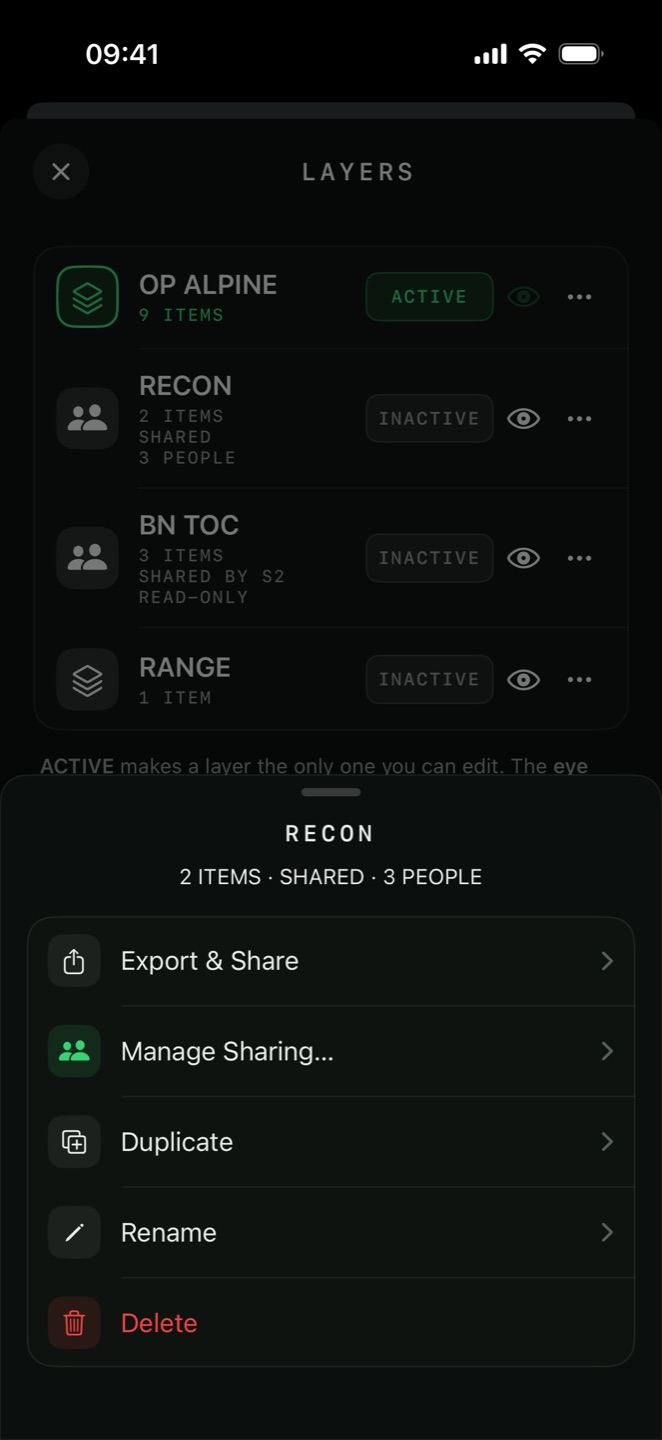
Open the layer list from the layer pill at the top of the map, or from the layers button in the map control column. The list shows each layer's name, its item count and, for shared layers, who owns it.

ACTIVE — the one you can edit PRO
ACTIVE makes a layer the only one you can edit. New items land in it, the Items screen lists it, and it is the layer that exports. Exactly one layer is active at a time.

The eye — drawn but read-only
The eye draws a layer on the map read-only. Its pins and shapes are visible and tappable, but you cannot move or edit them while another layer is active. Use it to keep a reference overlay — control measures, a previous recce, an imported boundary — under the layer you are actually working in.
layer actions
Tap a layer row to open its actions:
| Action | What it does |
|---|---|
| Rename | Renames the layer. Names must be unique — a clash reports A layer called “…” already exists. |
| Duplicate | Copies the layer and everything in it, including attachments and custom icons, as <name> copy. Useful before a destructive edit. |
| Export & Share | Writes the layer to a file and opens the share sheet — a snapshot, frozen at the moment you export. See Import, Export & Backup. |
| Collaborate via iCloud… | Starts a live share. Becomes Manage Sharing… once the layer is shared. |
| Leave Shared Layer | On a layer someone shared with you: removes your copy and your access. The owner's layer is untouched. |
| Delete | Deletes the layer and every item in it. |
moving items between layers
Items are not locked to the layer they were created in.
- Open the Items tab with the source layer active.
- Tap Select Items, then tick the items to move — or SELECT ALL.
- Tap MOVE in the selection bar and choose Move to Layer…
- Pick the destination layer. The current layer is excluded from the list.
collaborate via icloud PRO
An exported file is a snapshot. iCloud sharing is live: everyone invited sees the same layer, and a pin dropped by one person appears for the others as soon as both devices have signal. It runs on Apple's CloudKit sharing, so there is no Tactical GPS account, no server of ours in the path, and nothing to configure.
- Make sure you are signed in to iCloud on the device and that the layer is saved.
- Open the layer's actions and tap Collaborate via iCloud… — or use the share button in the map control column, which offers the same two choices without a trip to the layer list.
- Choose who may access the layer and whether they can make changes.
- Send the invitation through Messages, Mail or as a link.
- The recipient taps the link. Tactical GPS opens and reports
Joined shared layer “…”.

What the row tells you
A shared layer's row carries its item count plus SHARED and the participant count, or SHARED BY <owner> and SHARED WITH YOU on the receiving side. A layer you may view but not change also shows READ-ONLY.

What syncs
Items, their styling, folders, tags and their attachments — photos, PDFs and voice memos included. Everything arrives on the other devices without anyone exporting a file.

Managing and leaving
The owner uses Manage Sharing… to add or remove people, switch a participant between read-write and read-only, or stop sharing entirely. A participant uses Leave Shared Layer.
Tactical GPS Pro is required to join shared layers. If iCloud is not
set up you will see Sign in to iCloud in Settings to share layers. On a device
where iCloud sharing is unavailable altogether the app says so rather than failing silently.working in a read-only shared layer
If the owner gave you view-only access, the layer behaves like any other visible layer: you can see it, navigate to its pins, measure from them and export nothing. Trying to add an item while it is active reports:
This shared layer is read-only. Make another layer active to add items.
file share or live share?
| Export & Share (file) | Collaborate via iCloud | |
|---|---|---|
| Updates | Frozen at export time | Live, both directions |
| Recipient needs | Any app that reads the format | Tactical GPS Pro + iCloud |
| Works offline | Yes — it is just a file | Syncs when a device regains signal |
| Attachments | In KMZ and ZIP bundles | Yes |
| Good for | Handing a route to someone, archiving, another GIS | A team working the same area at the same time |